File
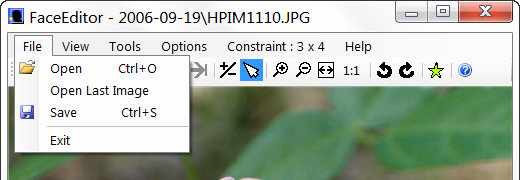
Use the File menu to open and save files or close the FaceEditor program.
- Open - Opens the open file dialog where you can browse for image files to open.
- Open Last Session - Reopens the file that was open when FileEditor last closed.
- Save - Saves all the face region data for the currently open file in the .picasa.ini file of the current folder.
- Exit - Closes the FaceEditor program.
View
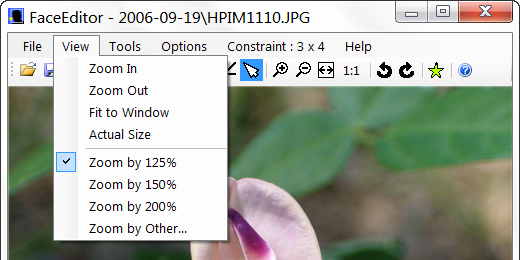
The View menu item has two sections. The top section is for zooming the picture window and preforms the same tasks as the zoom buttons in the toolbar do. The bottom section offers choices for the current zoom factor. The zoom factor determines how much the image is zoomed in or out each time you click the Zoom In or Zoom Out button in the tool bar or select Zoom In or Zoom Out from the View menu. The current zoom factor will be displayed with a checkmark by it.
- Zoom In - Zooms the image in by the current zoom factor.
- Zoom Out - Zooms the image out by the current zoom factor.
- Fit to Window - Size the image so it completely fits in the picture window.
- Actual Size - Display the image at its actual size.
- Zoom by 125% - Sets the current zoom factor to 125%.
- Zoom by 150% - Sets the current zoom factor to 150%.
- Zoom by 200% - Sets the current zoom factor to 200%.
- Zoom by Other - Opens the FaceEditor Zoom Factor dialog where you can set the zoom factor to a value of your choice.
Tools
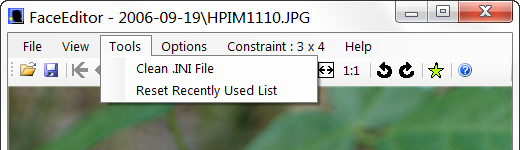
Tools contains items used to tidy things up a little.
- Clean .INI File removes the backuphash entries from the .picasa.ini file for each of the images in the list of images for the current folder. It also deletes any empty section entries.
- Reset Recently Used List clears the names currently in the recently used name list.
Options
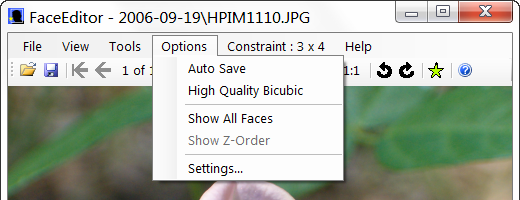
Options give you some control of how FaceEditor works. Your choices are saved so the next time you use FaceEditor it will be just the way you left it.
- Auto Save - Automatically save any changes when another image is opened or the FaceEditor program is closed. If Auto Save is not checked, you will be asked if you want to save if any changes have been made since opening the image or last saved changes manually.
- High Quality Bicubic = Sets the interpolation mode used when resizing images to High Quality Bicubic. High Quality Bicubic is better for resizing images but my be to slow for some computers. The difference between High Quality Bicubic and the default rendering mode is most noticeable when the image is being scaled to a much smaller size.
- Show All Faces - Displays a rectangle for each face region defined in the current image.
- Show Z-Order - If checked, rectangles shown by Show All Faces will be clipped to hide portions which would be covered by rectangles considered in front of them. This option is only available when Show All Faces is checked.
- Settings - Opens the FaceEditor Settings dialog where you change settings such as the font used to display the name below faces or the number of names to list on the most recently used list.
Constraint
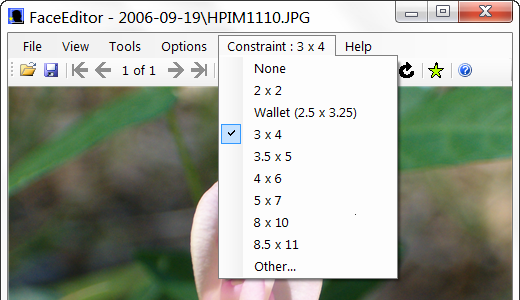
The Constraint menu contains options to restrict on the shape of the rectangle used to define faces to common photo sizes, define a custom size ratio or remove all restrictions on the size ratio of the face rectangle. Setting a constraint on the rectangle used to define faces can make the images in Picasa's people folders uniform and more print friendly.
- None - Allows the rectangle to be resized freely.
- Other - Opens the FaceEditor Custom Constraint dialog where you can define a custom size ratio.
Help
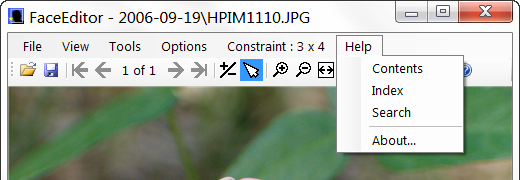
Help is the place to go for information about FaceEditor.
- Contents - FaceEditor help file Table of Contents.
- Index - FaceEditor help file Index.
- Search - Search the FaceEditor help file.
- About - About FaceEditor.
XMP
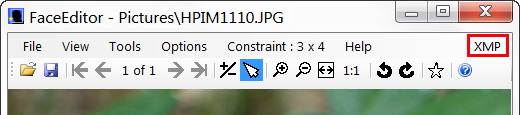
XMP is displayed in the top right corner of the menu bar only when FaceEditor is editing face data found in the XMP (Extensible Metadata Platform) section of an image file. FaceEditor will only edit XMP face data if it already exists in the image file and no face data is found in the .picasa.ini file. Face editor will edit face data written by Picasa or Windows Live Photo Gallery or both if they exist. If both exist, FaceEditor will only read data written by Picasa but write any changes to both. FaceEditor will edit existing faces and create new faces but will only write to existing XMP data sections.
