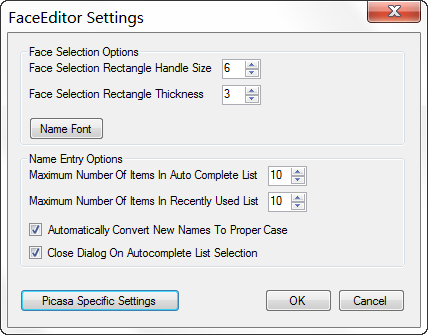
The Face Selection Options control the way face area rectangles displayed on screen.
- Face Selection Rectangle Handle Size - Determines how close you have to be to the edge of a face region selection box to be able to grab and resize it. The possible values range from 4 to 10. A larger number will make it easier it will be to grab especially on a high resolution screen.
- Face Selection Rectangle Thickness - Width in pixels the lines are drawn for the rectangle defining a face region. Possible values range from 1 to 5.
- Name Font - Opens a font dialog where you can choose the font type and size used to display the name below the selected person. If the font size is to large it sometimes leaves remnants on the screen.
Most of the settings in the Name Entry Options sections effect how the Name Dialog works.
- Maximum Number Of Items In Auto Complete List - Sets the maximum number of names offered in the autocomplete list when typing a name in the Name Dialog. The possible values range from 4 to 15.
- Maximum Number Of Items In Recently Used List - Limits the number of recently used names listed in the popup menu when you right click the mouse over a face region selection box. The possible values range from 4 to 15.
- Automatically Convert New Names To Proper Case - Causes the Make New Names Proper Case checkbox in the Name Dialog to be checked every time the dialog is opened. This only affects new names added to the contacts list. Existing names are not changed. The name "john smiTH" would be changed to "John Smith" if Automatically Convert New Names To Proper Case is checked and it did not already exist in the contacts list. This setting can be overridden by removing the check from the Make New Names Proper Case checkbox in the Name Dialog.
- Close Dialog On Autocomplete List Selection - Causes the Name Dialog to automatically close once a name is chosen from the autocomplete list either by clicking on an item in the autocomplete list with the mouse or by selecting an item using the Up and Down arrow keys and pressing the Enter key. If this option is not checked the name chosen in the autocomplete list is entered into the name box and must be accepted by pressing the Enter key or clicking the Ok button.
The Picasa Specific Settings button opens the Picasa Specific Settings Dialog where you can specify the location of the contacts.xml file to be used and other information FaceEditor needs to read and write information in the contacts.xml and .picasa.ini files.
