File Open and File Save
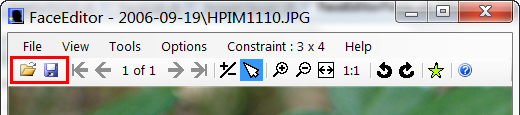
These are the standard file open and save buttons.
 The Open button will open the open file dialog where you can browse for image files to open.
 The Save button will save the face region data for the currently open file in the .picasa.ini file of the current folder.
Image Navigation
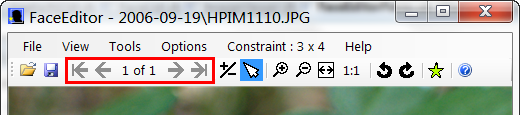
When you open an image file in FaceEditor it will build a list of the files found in the same directory as the file you have chosen to open. FaceEditor also builds a list of all the files dropped onto it if you opened the file using drag and drop. These buttons allow you to navigate through the list of the images found when FaceEditor built the list. The center area shows the current position in the list of images as well as the total number of images FaceEditor found and is able is able to open.
 The First Image button opens the first image in the file list.
 The Previous Image button opens the previous image in the file list if one exists.
 The Next Image button opens the next image in the file list if one exists
 The First Image button opens the last image in the file list.
Zoom and Select Tools
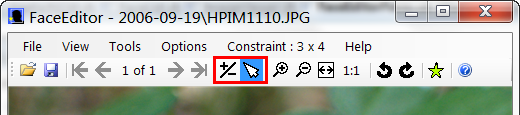
The Cursor tools allow you to change how the mouse is used. The currently selected tool will be highlighted.
 The Zoom tool allows you to zoom in and out using the mouse. The Zoom tool will display a magnifying glass cursor
  whenever it is over the image.
 The Select tool allows you to select, edit and create face regions. Use the Select tool to make all the changes to the face regions.
Zoom Buttons
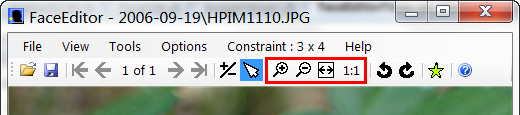
The zoom buttons change the image size once without changing the cursor. The Zoom In and Zoom Out buttons zoom the image by the current scale factor which can be set in the View menu item.
 The Zoom In button zooms the image in by the current zoom factor.
 The Zoom Out button zooms the image out by the current zoom factor.
 The Fit to Window button will size the image so it completely fits in the picture window.
- 1:1 The 1:1 button will display the image at its actual size.
Rotate Image Buttons
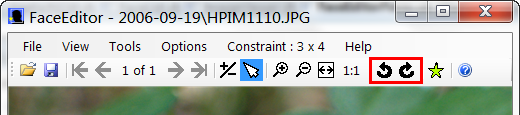
The rotate image buttons allow you to rotate the current image 90 degrees. Picasa will detect this change when it rescans the image. If the image contains information about its current rotated state FaceEditor will use that information to display the image the same as Picasa would.
 Rotate the current image counter clockwise.
 Rotate the current image clockwise.
Star
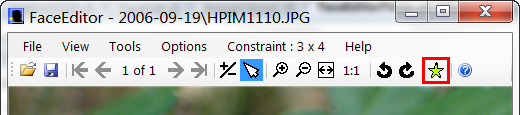
The Star button allows you set or change the starred staus of an image in Picasa. FaceEditor will update the starred status in the .picasa.ini file, but like any of the other changes, it will not take effect until Picasa reads it.
 The current image has a star. Clicking the button in this state will remove the star from the current image.
 The current image does not have a star. Clicking the button in this state will add a star to the current image.
Help
FaceEditor's help file can be easily viewed by clicking the Help button.
 The Help button opens FaceEditor's help file.
