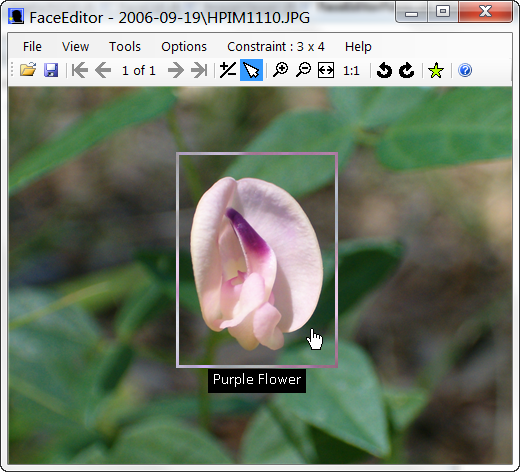
Hello. Welcome to my program. FaceEditor was designed to edit and create regions identifying people for Picasa and Windows Live Photo Gallery. It was designed to make it as simple as possible to create, resize, move and name face regions. FaceEditor adds the ability to resize and reposition the face regions created by Picasa or Windows Live Photo Gallery.
Having the ability to zoom the image makes it easy to see who's who as well as frame the face more accurately. FaceEditor also offers the ability to restrict the shape of the face region to common photo sizes making images in Picasa's People folders more print friendly. Adding a new face region is as easy as holding down the right mouse button and dragging a rectangle to the size needed. A handy list of most recently used names reduces typing considerably when naming people.
How it works
FaceEditor uses data stored in Picasa's hidden .picasa.ini files and the contacts.xml file to identify people in photographs. If FaceEditor does not find any face information in the .picasa.ini file, it will search the image file for information contained in the XMP metadata. To create new face regions or edit existing ones, FaceEditor has to edit or add data to the contacts.xml and .picasa.ini files or to the XMP metadata found in the image file.
FaceEditor is not able to edit or create new face regions where the data is stored in the image file unless data is originally found there. If Picasa scans an image for faces and finds data about faces in the image file, it will use that data instead of any found in the .picasa.ini file. FaceEditor will use the information found in the .picasa.ini files first. FaceEditor will only search the image file for data if none is found in the .picasa.ini file. If data is found in the image file that was written by both Picasa and Windows Live Photo Gallery, FaceEditor will use data written by Picasa but will update both with any changes.
Picasa and Windows Live Photo Gallery must rescan the images to read the data created by FaceEditor. This can be done by temporarily removing the folder from Picasa using the Folder Manager (Tools>Folder Manager) then adding the folder back once Picasa has updated its databases. The folder containing the images can also be temporarily moved to a different location so it can not be found. The easiest way to use FaceEditor is to name all the people in your photos before putting them somewhere Picasa can find them.
FaceEditor can also add new contacts to the contacts.xml file where they will be added to the list of people in the People Manager (Tools>People Manager) next time Picasa is started.
Where precautions are necessary
Picasa was not designed to have its files messed with so some precautions should be taken when using FaceEditor. A lot of care has been taken to prevent any problems that might occur but there is always that potential.
New contacts
Each person in the contacts list is given a unique identification number by Picasa. FaceEditor generates an identification number that is unique to all the contacts in the contacts.xml file. There is no guarantee that there will not be any conflict with this identification number elsewhere in Picasa.
Picasa rewrites the contacts.xml file when it closes. If FaceEditor updates the contacts.xml file while Picasa is running, those changes will be lost when Picasa is closed. The people that were added to the contacts.xml file by FaceEditor will show up as "<Unknown Person>" when Picasa rescans the images. Any time a face rectangle is found and the id can not be found in the contacts.xml file it is listed as "<Unknown Person>".
