Picasa is great for organizing and finding pictures using name tags. The name tags are not much use outside Picasa so I tried to find different ways to make them available. I have created a Picasa template for exporting images to a HTML web page. Using this template with a small external program, Picasa will produce a web page slideshow that can be viewed in most web browsers. The images are displayed with their caption and a list of people named in the image.
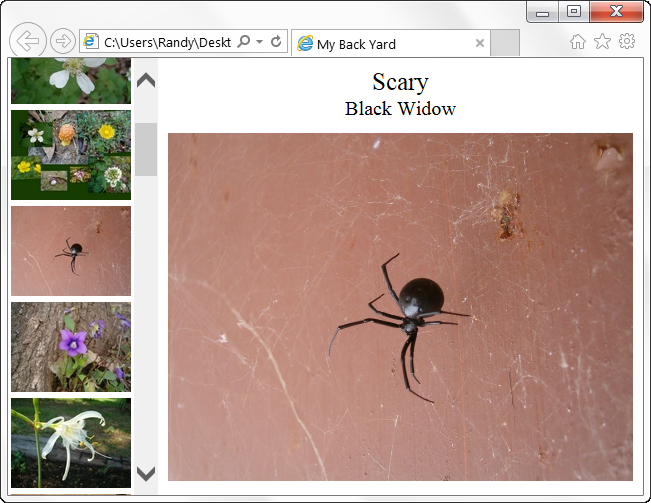
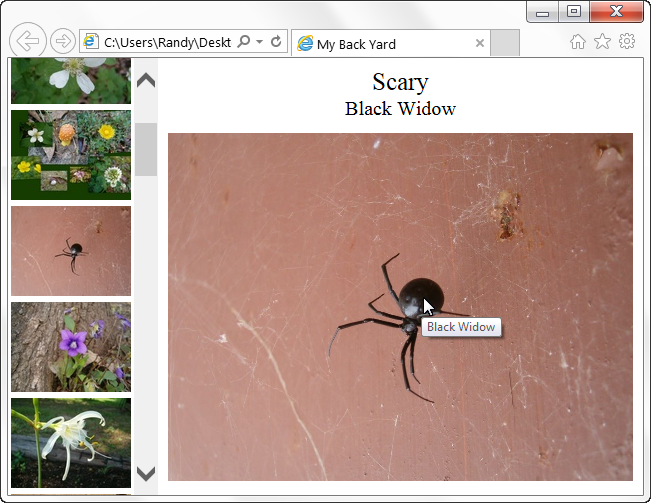
Use the right and left arrow keys to move from one image to the next or select one from the list of thumbnails on the left. Move the mouse pointer over a region where someone's face has been identified and a small text box will appear displaying their name.
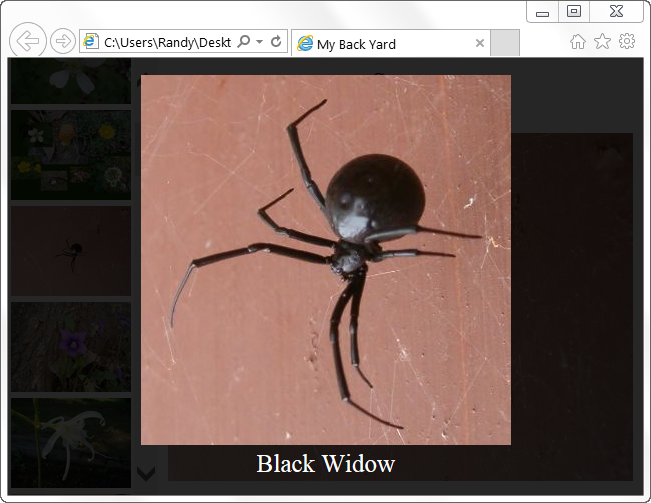
If you click or tap (if you have a touch screen) on a person's face, a popup window will show a better view of the region defining their face (up to 100%) along with their name listed below.
Here are some examples of the same group of images with the viewer used in different ways. The captions were added using Picasa. For the face tags, I always use my own program (FaceEditor) because it is easier and allows better sizing and placement.
- My Back Yard with popup face tags showing captions and a list of names
- My Back Yard with captions and a list of names
- My Back Yard with only captions
How to use my template
A template is simply a folder that contains files that Picasa processes to create text files or files which are simply copied to the output folder. Picasa reads through the template files and replaces certain keywords or markers with information about the images you are exporting. Picasa does not export any name tag data so I provided a program to lookup that data for use with the template. The program only works on Windows computers but the slideshows can be viewed on most computers.
After downloading and placing the template in the correct Picasa program folder, it is ready to use in Picasa.
Select the images you want in the slideshow. If you want to select pictures from a people folder, you have to place then in an album first or Picasa will only export the face. Movies only work in Windows Internet Explorer.
From the menu select Album/Folder >> Export as HTML Page... to open the export window. Select the Name Tags in Slideshow template. Select the image size desired. Enter a title for the slideshow. Select a folder to send the output to (Select somewhere easy to find.). Click the Export button.
When Picasa finishes exporting the images, your web browser should open up with a What Next page with instructions on what to do next.
Open the folder you just created. Drag the filelist.txt file and drop it on the NameTagExporter.exe program. This will create a file named imagemaps.js. After the program displays a message saying it's done, double click the index.htm file to start viewing your images.
NameTagExporter.exe
The NameTagExporter.exe program uses the .Net Framework 3.5. It is a basic part of windows but that particular version may not be installed on your computer. Windows 7 and higher have it but it may not be turned on ( Enable the .NET Framework 3.5 in Control Panel).
Intro for Multiple Names
If more than one name is found in an image, the list of names is started with the text "Left to Right:" followed by the list of names. If you would like another phrase or perhaps English is not your preferred language, you can edit the template or the index.htm file to use any text you desire.
Edit either the start.htm file in the template folder once or the index.htm file in the export folder each time you export images. It would be wise to save a backup copy before editing. Open the file in Notepad and edit the code at line 89.
namelist = 'Left to Right: ' + namelist;
Change the text "Left to Right" to your desired phrase. When saving, encoding format matters. Simply saving should write the file in the same format it was read but I could be wrong. On the menu in Notepad click File >> Save As. Encoding should be ANSI or possibly UTF-8. It may not matter as much if you are editing the index.htm file in the export folder because the browser has to read the file. If you are editing the start.htm file in the template folder, it does because Picasa cannot read Unicode characters.
Sharing the Slideshow
The files in the output folder can be copied to a CD or DVD and viewed much like the Gift CD Picasa creates. If you have your own web site, you can upload the files there.
The program used to lookup the names of people can also produce an XML file which can be used to edit a Gift CD produced by Picasa to allow the viewer to display a list of names as the image caption.
Notes:
If viewing a slideshow from your hard drive or from a cd, Windows Internet Explorer will complain about ActiveX controls or active content. This is because it changes the HTML code for each image. Tell it to allow the content. Other web browsers don't seem to have a problem with it.
After using the filelist.txt file and NameTagExporter.exe program to create the imagemaps.js file, the two are no longer needed and can be deleted. The What Next.htm file is no longer needed after you are done looking at it. The autorun.inf file is only useful if you are putting the files on a CD or DVD but is not necessary.
If you have setup Picasa to store its database any place other than the default location you must show the NameTagExporter.exe program where to find the contacts.xml file. Double click the NameTagExporter.exe program file. Click the "Options" button. Click the "Picasa Specific Settings" button and browse to the location where it can be found.
Double quotes (") are not allowed in the caption. If this character is used it will cause an error in the JavaScript code and the viewer will not function. Double quotes (") must be replaced with " either from within Picasa or by editing the index.htm file manually.
More information
More information on Picasa's Export as Html Page template system can be found in the documentation folder located in the same folder as the templates folder. You can also find some useful information by reading the index.tpl files in some of the default templates that come with Picasa.
Download my template
If you would like to download my slideshow template, it can be found here.
Unzip the file and copy or move the "Name Tags in Slideshow" folder to the folder that contains Picasa templates. On Windows systems that folder can be found at:
C:\Program Files (x86)\Google\Picasa3\web\templates (on 64-bit systems)
C:\Program Files\Google\Picasa3\web\templates (on 32-bit systems)
