File
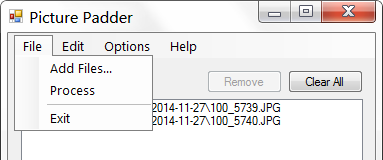
Use the File menu to add and process files or close the Picture Padder program.
- Add Files... - Opens the Open File dialog to select files to add to the list.
- Process - Begins the padding process for the selected files.
- Exit - Closes the Picture Padder program.
Edit
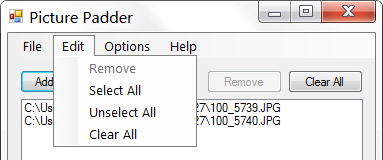
Use the Edit menu to manipulate the items in the file list.
- Remove - Removes the currently selected items from the file list.
- Select All - Selects all items in the list.
- Unselect All - Unselects any selected files.
- Clear All - Removes all items from the file list.
Options
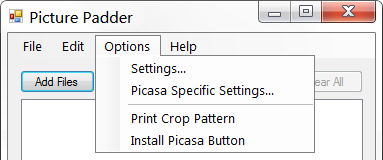
Use the Options to change Picture Padder settings or perform special functions.
- Settings... - Change Picture Padder Settings.
- Picasa Specific Settings - Change Picasa Specific Settings used to retrieve names.
- Print Crop Pattern - Creates a test image for the currently selected print size which can be used to measure how much an image is clipped when printed by a print service.
- Install Picasa Button - Installs a Picasa button which allows images to be sent directly from Picasa to the Picture Padder program. (Read more here.)
Help
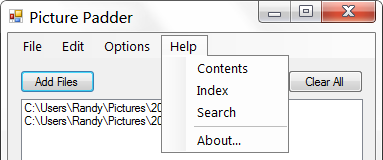
Help is the place to go for information about Picture Padder.
- Contents - Picture Padder help file Table of Contents.
- Index - Picture Padder help file Index.
- Search - Search the Picture Padder help file.
- About - About Picture Padder.
